
How to Make Lightroom Pro Faster?
Adobe Lightroom Pro is a powerful photo editing suite capable of handling heavy RAW files, complex color grades, and advanced AI masking computations. However, as your photo library grows and you perform intensive editing tasks, the software can sometimes experience lag, slow rendering, or stuttering.
Optimizing your hardware settings, managing cache efficiently, and adjusting your workflow settings can dramatically improve responsiveness and speed up your editing sessions.
Optimizing Camera Raw and Performance Preferences
Adjusting the core software settings inside Lightroom Pro provides an immediate boost to overall speed and operational fluidity:
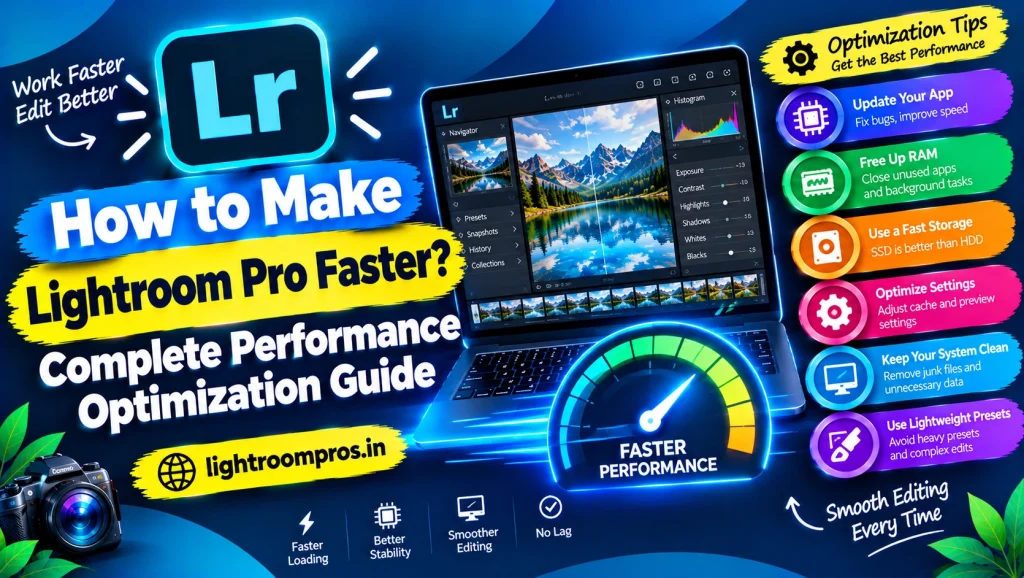
- Enable GPU Acceleration: Navigate to preferences and ensure that your graphics processing unit (GPU) is enabled for image processing. Using a dedicated GPU offloads heavy rendering tasks from your CPU, resulting in faster export times and smoother slider responsiveness.
- Allocate Dedicated RAM: Ensure your system has sufficient RAM allocated to background operations. Limiting background application clutter frees up valuable memory for Lightroom’s rendering engine.
- Optimize Catalog Settings: Regularly compact and optimize your catalog database to prevent sluggish file loading and speed up thumbnail generation.
Managing Cache and Storage for Peak Speed
A bloated cache is one of the primary culprits behind sudden performance drops. Proper storage management keeps the software running efficiently:
- Increase Camera Raw Cache Size: Set your Camera Raw cache to a larger capacity (such as 20GB to 50GB) in the preferences menu. A larger cache allows Lightroom to store frequently accessed image data locally, reducing the need to reload files from scratch.
- Clear Old Cache Files: Periodically purge temporary cache files and old previews that accumulate over months of editing.
- Use Fast Solid-State Drives (SSDs): Store your Lightroom catalog, image files, and cache directory on a high-speed NVMe SSD rather than a traditional mechanical hard drive to drastically reduce read/write bottlenecks.
Workflow Adjustments to Prevent Lag
How you approach your editing process also impacts how smoothly Lightroom performs on your device:
- Build Smart Previews: When working on large RAW files, generate Smart Previews upon import. Editing Smart Previews instead of massive original files reduces processing strain and speeds up adjustments significantly.
- Turn Off Lens Corrections Temporarily: Keep lens corrections and chromatic aberration toggled off while making initial global adjustments, then enable them right before exporting your final image.
- Batch Export Wisely: Avoid exporting hundreds of high-resolution RAW files simultaneously. Process exports in smaller batches to prevent memory spikes and potential application crashes.
Performance Optimization Summary
To compare how different adjustments impact overall speed, review the following optimization breakdown:
| Optimization Area | Primary Action | Expected Performance Impact |
| GPU Acceleration | Enable graphics hardware in settings | Faster slider response and quicker exports |
| Cache Management | Increase size and clear old data | Faster image loading and smoother scrubbing |
| Storage Speed | Move catalog and cache to NVMe SSD | Dramatically reduced read/write bottlenecks |
| Smart Previews | Generate previews upon import | Smoother real-time editing on heavy RAW files |
Conclusion
Making Lightroom Pro faster requires a combination of hardware optimization, proper cache management, and smart workflow habits. By enabling GPU acceleration, expanding your Camera Raw cache, storing files on fast SSDs, and utilizing Smart Previews, you can eliminate lag and maintain a smooth, professional editing experience.